Can you tell a story with a game? Our students are making connections between the characters, setting, conflict, rising action and conclusions in stories to the same elements in video games. So, we are both creating games that represent our understanding of books, and also writing stories about video games we know.
I have started a Vlog. Every day or every second day if I am really busy, I will post one thing I am excited about, one thing that I am grateful for, and I will tell one really bad "dad joke". Usually I will make a connection between what we are learning, and how we are using different technologies to further our learning. Tune in for a positive message each day.
Wednesday, January 17, 2018

Wednesday, November 15, 2017
My Classroom and our SETBC Classroom Project
This year begins with a bang! We are starting the year studying block based coding, and learning how to use coding to explore our inquiry topics. This is the first monthly video update introducing the equipment and how we might make use of it. Enjoy!
Saturday, February 7, 2015
Rapping About the Brain
On Friday, my colleagues studied some brain based learning research and learned about MindUp, an approach to creating awareness in your thinking, and how the brain and emotions affect our learning. One of the tasks was to do a song or skit about a part of the brain. Our group was given the amygdala. This rap is based on the old school Run DMC song "My Adidas." Enjoy!
Me and My Amygdala, walking through the land
Keeping me safe from things unplanned
It's the center of my brain controlling, fight, flight or freeze
'Cause living in the world ain't no easy breeze
Can't clean up your mess just by sprayin' Febreeze
My Amygdala is the part of the brain that regulates
Keeps in check my emotional state
When I'm positive it feeds me thoughts and reasoning
Gives my imagination flavor and seasoning
But when I'm scared, I don't shut down
It turns off my judgment because it's time to throw down!
It protects me from threats, so I can survive
But I still have to manage it, if I want to thrive
ME and my Amygdala!
Me and My Amygdala, walking through the land
Keeping me safe from things unplanned
It's the center of my brain controlling, fight, flight or freeze
'Cause living in the world ain't no easy breeze
Can't clean up your mess just by sprayin' Febreeze
My Amygdala is the part of the brain that regulates
Keeps in check my emotional state
When I'm positive it feeds me thoughts and reasoning
Gives my imagination flavor and seasoning
But when I'm scared, I don't shut down
It turns off my judgment because it's time to throw down!
It protects me from threats, so I can survive
But I still have to manage it, if I want to thrive
ME and my Amygdala!
Mark with Less Effort - Let's Talk About it!
I have been thinking a lot about giving kids feedback versus grades lately. What makes for smarter kids?
I had some students choose their own questions from a list I provided so that they would think more deeply about their novels. Students read novels in groups, and then used these questions to have discussions. The students then proceeded to write answers in their OneNote notebooks that I provided them with the OneNote notebook Class Creator.

Two-thirds of my students... have a personal device, be it a parent's old laptop, a small android tablet, or an iPad. The rest use the class computer, or do the assignment on paper in point form, and enter it online when they go home where they have a computer.
I had some students choose their own questions from a list I provided so that they would think more deeply about their novels. Students read novels in groups, and then used these questions to have discussions. The students then proceeded to write answers in their OneNote notebooks that I provided them with the OneNote notebook Class Creator.
Two-thirds of my students... have a personal device, be it a parent's old laptop, a small android tablet, or an iPad. The rest use the class computer, or do the assignment on paper in point form, and enter it online when they go home where they have a computer.
I can access all the student notebooks from within my OneNote notebook, and when I use the desktop app, I can record my voice into their notebooks using the "Insert Recording" button and my laptop mic! This means I can leave them a personal message with lots of specific details on how to improve their writing. I can give far more feedback this way, than I would when I write it out. Also, I have learned through my research that student listening comprehension is higher than reading comprehension as high as age 13. Seeing that I teach students from ages 11-13, this is an important consideration.
I don't tell them their mark in the recording, but keep their mark in my mark book. when the student wants to know the mark, they have to approach me, and tell me the feedback I gave them in order to know their mark. I have learned that kids only pay close attention to the written feedback if they are negatively surprised by the mark they receive. Often students need to go back and listen again to my feedback, and this has improved their reading and writing skills.
If students are using OneNote online, they need to right-click on the audio file, download, and then playback the comment.

If they are opening their OneNote notebook in a desktop program or app, they should be able to play it back by clicking on the play button to the left of the recording.

My students have told me they like having personal messages recorded into their homework, and it allows me to provide better feedback, closer to the time the student finishes their work. It saves me time, a lot of effort, and I don't carry papers home with me to mark. Try it yourself!
I don't tell them their mark in the recording, but keep their mark in my mark book. when the student wants to know the mark, they have to approach me, and tell me the feedback I gave them in order to know their mark. I have learned that kids only pay close attention to the written feedback if they are negatively surprised by the mark they receive. Often students need to go back and listen again to my feedback, and this has improved their reading and writing skills.
If students are using OneNote online, they need to right-click on the audio file, download, and then playback the comment.
If they are opening their OneNote notebook in a desktop program or app, they should be able to play it back by clicking on the play button to the left of the recording.
My students have told me they like having personal messages recorded into their homework, and it allows me to provide better feedback, closer to the time the student finishes their work. It saves me time, a lot of effort, and I don't carry papers home with me to mark. Try it yourself!
Wednesday, December 24, 2014
The Next Great Equalizer
The HP stream is my new favorite device. 
Wait? Whaaaat?
Nope, ya heard me. Straight up love this little laptop. It is not the fastest, nor is it the most feature rich. I love it because it is a great equalizer.

No, not THAT kind of Equalizer!
I did a side by side comparison with a Chromebook. A really well made Chromebook. Both were affordable devices. Both offered all day battery life. Both have access to a variety of apps that students will find useful. Both devices would offer students today a leg up in their education with proper application. But, I choose the HP Stream hands down, if given the choice.
It runs full on Windows.
Yes you can download and install apps, but for most students, the key productivity apps are found in MS Office. I can download and install most legacy programs.
It has only a 32 Gb SSD, but this means it is possible to save files to the machine, upload it to a website like my SharePoint classroom, or to your choice of cloud services.
With a full operating system, I can use both installed programs and web based programs. The Stream can do what the Chromebook can do, and more.
I can also install Bluestacks which is an android app player for Windows. This allows me to run android apps on the Stream. I tested out Angry birds through Bluestacks, and it worked great.
Performance
I have been piloting Office 365 with my class. Students have been making PowerPoint presentations, and the Stream 11 allows them to open the web app with the full featured installed program. This means they can take advantage of more features than the web app has, and it runs faster as the work is being performed on the local machine.
I couldn’t install Minecraft, as despite it’s simple looking graphics, it is a “hefty” game. But Kodu and Sketchup ran well on this device. I have not tested it extensively, across multiple users and with large and complex projects, but for student use I think it will be great.
I had a number of kids play games on it, with my 9 year old son being one of the chief testers. He found that games on Miniclip, like Tanki were a bit slow at first, but rapidly caught up (starting at 20 frames-per-second, but quickly moving up to 50 frames-per-second).  Games are a very good way to measure the performance of a machine, and if I am realistic, my students want a machine for work and play. All testers said it wasn’t quite as high performing as their i3 or i5 machines, but it was good enough to be enjoyable.
Also, when it comes to adding pictures, the Stream 11 allows you to save pictures on the local machine or on OneDrive (which is browsable in Windows 7 and 8). With the Chromebook, my students were able to work in Office 365, but had to save pictures in Google Drive.
Familiarity
It works like the desktops and laptops we distribute in schools. This means a shorter learning curve, and that the licenses a district has purchased will be usable on these devices.
It means better integration. You can hit print if you like. It also means my students will be familiar with world class productivity software. I can connect it to our local server drives.
Final thoughts
It costs $250, it can be put in the hands of my students for less than the price of a Chromebook. If you buy it from “the Microsoft stores, you can get good deals on shipping and most importantly, you can get “Signature” editions of laptops. This rather innocuous title means no “value-added trial software”, otherwise known as “bloatware” or “crapware.”
Big box stores will sell you laptops at the same price, but with this bloatware installed, which makes them money. Some even offer a service to “clean up that new laptop” before you take it home. Should a new laptop need to be cleaned?
I ran it through some pretty demanding critics, my students and my children. They all agree it doesn’t replace a more powerful desktop, but for day to day use they all agree, it’s a great bargain.
UPDATE: There was a sale. My friend got one on December 22rd from the Microsoft Store for $179.
Saturday, December 6, 2014
Getting to Know Office 365 with my Students
This week I signed up my students on Office 365 as part of a district initiative. I sent home a draft waiver provided for me by the district IS department.

Office365 landing page
On the first day, I got 22 of 29 responses back, all with a “yes” answer.
Once I had all the waivers back I created accounts for my students one at a time. There is the option to bulk upload names of kids all at once in a CSV file, but I chose to do it one at a time so that I could assign the students’ password. I followed a naming scheme for login ID’s designated by the district, and create a set of passwords for my class that each student would find easy to remember. Office 365 wants an 8-16 digit password with capitals, letters and numbers.
Unfortunately, even though I assigned the password (as opposed to letting my students choose one), I left the box ticked that told them to change their password after first login. Because we did this as a class at the same time, I instructed them how to change their password so they could easily remember it.
I asked my four students that have their own laptops (2 have laptops purchased by their parents, two with old laptops from their parents’ businesses), and showed them how to login first during our silent reading. They logged in, with no trouble. They then distributed a set of Chromebooks on loan from CUEBC (really awesome initiative) to students who didn’t have a device.
Some kids who were watching and waiting, jumped in and logged in on the own. Kids who could login themselves easily helped kids who were having difficulties, or who didn’t remember where to click. To make it easy, I put a link on my teacher website.
Our first adventure related to our Math class (which is what we would normally be doing at this time). Each student open an excel spreadsheet.
I then gave every student $1,000,000. Using only Black Friday or Cyber Monday flyers they found online,
Using a simple formula, kids added the 12% sales tax to the sticker price of their purchase, and kept a running total as they shopped.
The rules were simple:
1.) Shop only using online flyers
2.) Always factor in the taxes
3.) Keep a running total
4.) At the end of 20 minutes, MR GILL KEEPS WHAT YOU DON’T SPEND.
Students worked independently, or formed ad hoc collaborations. In a frantic shopping frenzy akin to the real Black Friday sales, kids feverishly scoured the flyers for deals, deals, deals. Students bought gaming computers, tablets, and leather purses. This was not making enough of dent in their budget, so they started buying higher end items, like watches and jewelry. One student found a 4.5 meter tall replica of a the Transformer, Bumblebee.
I have no idea where he found it.
When they read out numbers, I discovered they were not fluent in reading numbers above 9,999. This needs to be revisited. I also found that they were talking about math, and trying to estimate and strategize when they were shopping.
Performance
Overall, we had students on Chromebooks, iPads, Android tablets, and laptops working on Office 365, and it performed well. I noticed a little lag when Excel was performing a calculation, as did my students. In some cases it could have been as a result of using lower powered tablet devices. Or, it could have been our network speed at the time. I don’t think I can attribute this to Office 365, but more testing over time will tell.Also we learned that you don’t have to hit save in the web app. You can give your spreadsheet a name by using “Save As”, or by just typing it right over the word document.
Students are able to open Office365 documents using apps installed on their local devices, but then they may need to save their work as they go. But at least it is saved in an accessible location, and needs only a browser to get to their “stuff”.
Up next: tear-free grammar lessons, and editing dialogue with ease.
Thursday, December 4, 2014
Mobile in the Classroom: Office Lens
Who uses this handy survival tool?
 What does Office Lens do? Something vastly better than taking a picture of a piece of paper. It takes a picture of a document:
  (Actual angle of document in picture) And then it justifies the angle, corrects the color, and makes cropping the picture easy.
  It then sends it to my OneNote in the cloud! (Adds to my Quick Notes section of my Personal Notebook) On average it takes about a minute, possibly two with slower bandwidth to appear in my Notebook, while I am working in it. What could be easier? Putting resources in OneNote means I can then mark it up, write directly on the page, save it as a PDF, and then put it where my students can access it. Also, OneNote can read the text in photos, so I can extract the text to edit it if I would like! I have been using multiple math sources to cobble together a combined Grade 6&7 curriculum. With OfficeLens and my Surface Pro 3 and stylus, I can shoot different pages from multiple sources into my One Note. I can then mark up the page of notes, and post them to my SharePoint at the end of each lesson. One ambitious student checked the notes when he was away from class, and was ready to make up his work when he came back to class. This saved both of us a lot of time and effort. At conferences or meetings you can capture slides and whiteboard drawings while people are presenting. Just keep writing notes, and the pictures you take in OfficeLens appear after a bit for you to put in place. I use it for my daughter who benefits from using technology, and finds working with paper challenging. Other students in my class that have adaptations for learning disabilities also benefit from using digital copy, and OfficeLens allows me to go from paper to OneNote – where kids can choose how they want to mark up their work. I just send them the page from my notebook to theirs. Although OfficeLens is available for Windows phone and now iOS, I cannot find it in the app store for my friends with iPhones. Perhaps this is available only in the US? Regardless, keep an eye out for this app, as it is a time saver and a game changer!
 Saturday, November 8, 2014
My Own “Hole in the Wall”
Sugata Mitra is one of my favorite educational researchers and presenters. I was intrigued by this thought:
There will always be places in the world where good schools don't exist and good teachers don't want to go, not just in the developing world but in places of socioeconomic hardship.
His 2010 TED talk does a pretty good job of explaining his “Hole in the Wall” experiment on children self-organizing and learning, with the aid of a computer, and no adult intervention. I strongly recommend his thought provoking and highly entertaining TED talk.
Pretty cool stuff.
Some members of CUEBC, the Computer Using Educators of BC, a provincial specialist association here in my home province, would like to revive the “hour of code” or other approaches to get the average student interested, or at least aware of, computer programming. This gave me an idea.
One of my learnings having played with this Surface Pro 3 is with Kodu. Kodu is a free program that introduces kids to the idea of computer programming by creating a video game with simple instructions and a Minecraft like environment.
What if I combined the two ideas?
I propose to put a Microsoft Surface tablet (probably a Surface Pro 3) on the wall of an elementary school hallway, about three and a half feet off the ground. It would be encased around the perimeter in Plexiglas, secured to the wall, and powered. I further propose that it be set to wake up when you hit the windows button on the tablet, and then it would be configured as to show Kodu. Perhaps it would also have a few other apps too, but they would be quite limited in selection. Other than explaining that there is a tablet in the hallway, and that it is very nice, and can be used to make video games, I would then offer no adult intervention or help. I wonder if kids when they go by the tablet would:
a) play with it
b) figure out how to edit Kodu
c) gather in numbers around the screen
d) talk about what they are learning
e) create something new
What could go wrong. Someone could damage the tablet. Someone could attempt to steal the tablet. But, if reasonable precautions are taken, I bet the kids would find it an interesting experience, and would treat the tablet well. Perhaps the tablet would be behind Plexiglas, but a Surface Touch keyboard would be open to the kids (touchable, but not removable). They are quite durable!

This would further mitigate risk to the tablet.
I believe we need teachers, but I also believe that kids are able to self-organize and learn in the right situations, and think that Kodu would be perfect for this. Imagine getting elementary aged children interested in computer programming because they like challenge, and enables them to make a world how THEY envision it. One where they are in the driver seat.
Isn’t that why people code in the first place?
Sunday, November 2, 2014
Survival Skills for Digital Natives in the Analog Jungle
Part 1
Students in my class come with their own set of needs. In this series of blog posts, I will be sharing some of the skills I am teaching them to help themselves in class. I teach the whole class these skills because although they are targeted to some, they are beneficial to all.Lost in Translation
Some of my students are newly-arrived from other countries, and they are paying a lot of money to attend our schools as International Education Students. But, due to government cutbacks there is less support for these students, in class or in the form of pull out classes.I have a borrowed Surface Pro 3 tablet for my classroom, a 1st generation Surface RT and my own personal Windows phone. All have the Bing Translator app. This app allows someone to speak into the device, or hold the camera over some text, and the app will use the power of the cloud to translate. There are offline translation packs available. My most commonly used one now is Chinese (simplified)
When you use the translate app on the tablet, it allows you to easily toggle between translation direction. I can ask a question, hit the switch arrow, and my Mandarin speaking student can answer back in his own language. Below is a transcript of our conversation:

Sometimes I needed to translate part of a sentence, sometimes we used it for the whole sentence in our conversation. At the bottom is the two way arrows that we use to switch back and forth between languages.
And on my Windows phone:

Wherever it is supported I use the speaker icon so that my students can hear the words spoken to them from the device. This is because early in my career I read a book by Jim Trelease (the Read Aloud Handbook) which said that listening comprehension is higher than reading comprehension for children up to age 13.
I am told the translation is pretty accurate, and that the pronunciation is understandable.
This is incredibly empowering for my students. One student has now gotten his own tablet, and is writing Mandarin characters which are being translated into English. He feels very proud to be able to communicate on his own while he is learning English as fast as he can.
It isn’t perfect, but it is one more way to equip kids with skills to advocate for themselves, and to be more independent in school.
Monday, October 13, 2014
Surface Pro 3 Part 1
Removing Barriers
My inquiry this year is around using technology in ways that improve student – teachers rapport and communication. There is a natural tendency to focus on the new and shiny, but this year I am looking at using technology only where it makes a positive impact on student learning.But choosing the right tool can make all the difference. Today I want to talk about meetings and technology.
Meetings are mostly about listening. Meetings are sometimes about recording, and about making conscientious contributions when the moment presents itself. Sometimes the meeting is in a room full of people, and sometimes it is with one parent. Regardless, if you have your screen up, and keyboard clicking with eyes on the screen, some people will be wondering if you are distracted.
With the Surface Pro 3, I can use OneNote with my stylus in the lying-flat position.

This means that people can see what I am writing, and for some reason people associate writing with being on-task whereas typing may or may not be on-task behaviour.
By being transparent in my technology use, I won’t risk being distracted, and more importantly I will not risk others thinking I am distracted.
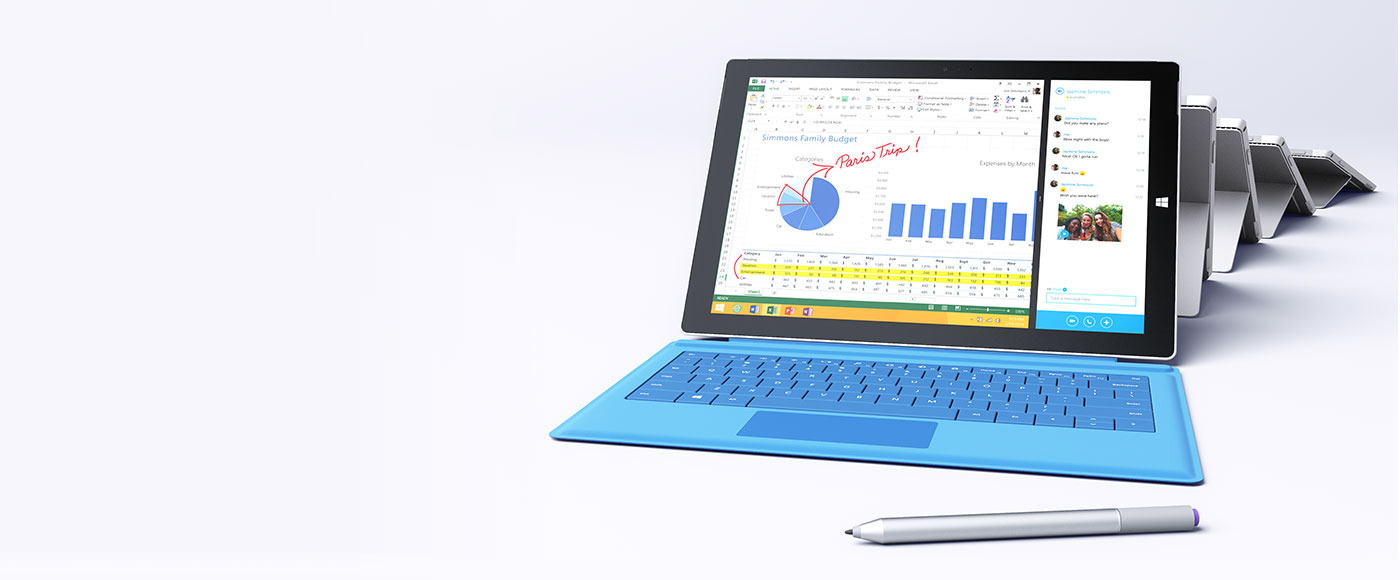
Photo from Microsoft.com
I believe the Surface does this better than the iPad because of the finer tipped stylus, built in palm block, and great handwriting recognition native to the OneNote app. While it is possible to accomplish much of this on an iPad, I have to use different add-ins, and I can’t save it to my server or my classroom website. I could also save it to a flash drive, or an SD card as well if I so chose.Device or someone else’s cloud are my only choices with the iPad, which means I may not be compliant with FIPPA regulations keeping sensitive information in some sort of cloud application.
Now, let’s see what else I can make this thing do.
Saturday, July 6, 2013
ISTE 2013 Part 1
The first few days of ISTE were a whirlwind. I got a quick start to the conference with a 7:30 – 11 am workshop with Dell on Sunday. While they were showcasing some of their new technology such as the new Windows 8 Pro tablet, the Latitude 10, the session facilitator tried to keep the focus on teaching practices. I thought he did a good job of getting us to talk to each other, sharing teaching ideas and experiences, and some of the apps he showed were as good as iOS apps. However one thing remains a challenge for the latitude 10, and other tablets, and that is projection. I don’t have a really good solution for wireless projection of a windows tablet yet, but perhaps if anyone out there has a good solution, please let me know.
The ignite speakers that preceded the keynote were excellent. Michelle Cordy taught me how to “hack my classroom” for some out of the box ideas that bring more authenticity to the classroom. I also listened to a video game designer talk about how kids don’t want to be spoon fed instructions in games as learning the game is part of the fun. Also, you can’t just “bolt” fun onto the side of an educational game, and vice versa. People who play games want to learn “through” them, not from them.
The opening keynote featured Jane McGonigal. She spoke about how there are millions and millions of people playing games today, and that game playing is a good thing. What really hit home was what people got out of playing games, such as challenge, feedback, and the joy of an authetic “win”. I wonder how I can make my classroom teaching more game-like? What can I do to inspire kids to try over and over again, and feel that learning is “levelling up?” I was impressed with some of the large scale events Jane facilitated, like getting 500 kids into the NY Public library to write a book in one night as part of a game called “find the future”.
There is something to be said for banner events – and it makes me think I need to create a banner event in my class.
More on ISTE 2013 coming in future posts, including what George Couros taught me about facilitating change in my school, as well as what I could do if I had one iPad in my classroom.
Saturday, June 8, 2013
Support Your Local Co-Op
Due to budget cutbacks, our Staff Development department is going to be much smaller. As a result, schools are going to have to look to themselves for professional development. I had the pleasure of working with the staff of Coquitlam River Elementary once or twice a month for this year on integrating technology into the classroom.

One of my last suggestions was to have people put up their hands and give a 30 minute session on some sort of technology in the classroom idea. Two teachers said yes, with the first teacher volunteering to present on using MS Word’s “Book Fold” feature .
The format was to create a lunch hour “Lunch and Learn” 30 minute workshop, complete with a student sample, written instructions, a digital template so you don’t have to make it yourself, and of course a demonstration of how to create a book using the book fold feature.
This lunch hour workshop adds no time onto the teacher’s day, makes for “easily digestible” concepts, and provides support so teachers can use the idea right away.
But how many teachers are interested in integrating technology into their classroom? I found that about half the teachers would be interested in attending this particular workshop. But I also thought that a number of teachers at three other schools within a five to seven minute drive of Coquitlam River Elementary would be interested in creating books with their students using MS Word.
I asked principals to inquire with their staff to see if one teacher was interested in attending. The principal would go into the teacher’s class on the Friday, 15 minutes before lunch. This would allow the teacher to get to the host school, sandwich and laptop / notepad in hand.
Four teachers attended from the three other schools, as well as four members from the host school’s staff.

If you count the principal, we then had 9 people attending this workshop. And when I asked teachers from each of the schools that attended, they all:
- Enjoyed the topic
- Appreciated the strict adherence to the timeline
- Made a commitment to using the idea, sharing it with a colleague, or sharing it at a staff meeting
- Would be willing to share a 30 minute idea of their own on using technology in the classroom at their school, and invite teachers from the other 3 schools to attend.
Principals were also really supportive of this idea going forward, especially as there will be fewer professional development options next year. They have committed to encouraging a teacher, (or perhaps more than one) to share a 30 minute lunch time workshop, to communicate this workshop with the other members of their pro-d Co-Op, and to cover a teacher’s class 15 minutes before lunch to allow a teacher to get to their neighbouring school to attend the 30 minute workshop.
What I wonder about next would be the importance of providing handouts online and perhaps screencasting to support teachers sharing a lesson they learned at a staff meeting. That would be like bringing the teacher who taught the lesson to 3 different staff meetings at the same time!
But regardless of what technology is used, local schools banding together to provide pro-d for each other sounds like a sustainable model, and I am looking forward to see what September will bring.
Incidentally, the next 30 minute workshop will be in September, and the topic is “Pinterest for the K-5 Classroom.” Stay tuned!
Sunday, April 14, 2013
We’ll Know We’ve Changed Because….
The title of the blog post is the last part of the inquiry process that I use when working with teachers on technology learning teams. It’s about gathering evidence that the changes you made in your classroom has made a difference compared to the method you were using before.
At the beginning of a Technology Learning Team journey, a lot of participants become concerned with learning about how all the features of software and hardware work. This is normal, but I don’t think we should stop our thinking there. Usually having a focus from the outset on what kind of data we can gather that will tell us if the technology has made a difference with our students’ learning.
One of the things people could look at is how their teaching impacts one student. This is a perfectly valid inquiry – do teachers not spend a lot of time on a small percentage of the population?
Here are some things people could measure when it comes to technology making a measureable difference:
| Problem | Strategy | Outcome |
| A student has trouble with losing their work, or does not hand it in on time. | Teacher has student use their SharePoint virtual classroom to launch, edit, and save their work right in a document library on the website. With the right settings on the folder, only the student and the teacher see that student’s assignment | The student doesn’t lose work, and is able to work on it anywhere they can access the internet. The teacher can give feedback while the assignment is still in progress. The work is always in the folder, and is therefore “handed in” to the teacher on time. It may not be quite done, but at least the teacher can do a timely assessment and see what the student is capable of doing within a given time |
| Student has a lot of trouble with written work | The teacher gets the student to use some form of technology like SMART notebook or Explain Everything (iPad app) to show their work. Teachers may need to help students get started with the software, and rehearse their narrations before recording. | Students can use images, some text, and their voices to narrate and show what they know. This results in teachers’ getting a better picture of what their students truly know (and what they don’t know). This leads to more accurate assessments, and better follow up strategies. |
| Teachers wish to improve communication between school and home about homework and special events | Teacher uses an online homework calendar that supports RSS. At the next parent night, parents put their email address on a list to subscribe to the teacher's calendar on their computer or smartphone. Using MailChimp or a program like it, RSS feeds can be turned into email messages (fine if your parents don’t mind their email address being used by MailChimp). | Parents check their, reader app, their inbox, or their phone and get the latest homework and updates on events in class. This could mean that more kids could show up with homework completed, or better prepared for field trips. There might be more parents participating as volunteers and drivers at events as the calendar updates serve as reminders of coming events. |
I think that technology does not offer a blanket solution that revolutionizes every child’s learning in the same way, and every day. I do think that thoughtful use of technology can make a difference in different learners’ lives, which add up to saving the teacher time and effort and improves that student’s learning.
That sounds like good data to me.
Sunday, April 7, 2013
A Little Knowledge is a Dangerous Thing–Perfect!
Teachers who are masters of instruction in an area have a feeling of comfort in the classroom. I have learned that these types of teachers may be more likely to teach in different ways, and more likely to accept work in different ways. Mastery of an area of instruction isn’t everything, but it sure helps. I am reminded of the saying “a little knowledge can be a dangerous thing.” The thinking is that knowing a little about something and then doing something with it could mean you don’t know enough to get yourself out of trouble.
Except in the area of educational technology. In some cases I think it might be enough that teachers are aware of what software can do, model a little bit of how it works, and then let students get at it.

In recent visits to classrooms, I have been modelling the use of OneNote for students to create projects. After I have helped the students get started with the software, if I taught one person one thing (right click vs. left click) that person answered the question when it came up again. The teacher in the room focused on creating groups that worked, brainstorming topics, providing starter questions, and modeling thinking like a researcher. If we had a technology question after the first 30 minutes, we dragged other kids in to solve it.
It’s true a little bit of knowledge can be a dangerous thing, but when it comes to educational technology, it could be a “disruptive” thing. And sometimes that’s a good thing.
Saturday, March 16, 2013
Desktop Computers Aren’t Dead–Tablets Brought them Back
Our district began an initiative to replace teacher desktops with laptops. The goal is to give teachers powerful devices they can take anywhere. Good laptops cost about a thousand dollars, though. So schools would share costs with the district. The district would pay ~1/3 of the cost of a laptop, and the school would pay ~2/3.  Schools get good equipment at an affordable price for their teachers, and as part of the agreement teachers would take 6 sessions of professional development over the course of the year, and share a lesson or a blog post at the end of the year.
The thing is, teachers didn’t always get rid of the desktop.
Some teachers connected theirs to a projector or SMART board if they were lucky to have one. Now they don’t attach and detach cables as often. Some keep them at their desk, but take the laptop to meetings, pro-d days, and home. The battery life is 2-3 hours, but that’s typical.
Some teachers don’t bring their laptop home though – even though it is a smaller sized laptop, they still find it heavy. This made me go bonkers first – but hey perhaps this should tell us something.
This makes me think that perhaps the solution is not buying one expensive laptop. Instead, schools should buy 2 cheaper devices – A desktop / tablet combo.
We already know how to manage desktops. They cost ~$250 for a refurbished desktop (or less) with 4GB of ram and a dual core processor. Fixing and upgrading desktops is easy – just a few screws and your fingers are all you need most days.
 (Photo from dell.ca)
Team this up with a $600 tablet, and you have great computing power for well under a thousand dollars.


(photos from apple.ca and microsoft.com)
Teachers typically work in one classroom. For their larger computer tasks, they can go to the desktop. Its got the power to do video editing, and 4 gigs of ram for running larger applications like Photoshop and SMART notebook.
But don’t sit there all day – pick up your tablet and go from desk to desk, presenting info, looking up stuff, sending quick messages, and making assessments.
Take the tablet to meetings. Take it on field trips. Take it home.

I don’t have a preference at this point over Windows RT or the iPad. Both have long battery life, light weight, and durable bodies. Both give our IT department fits because they can’t yet manage them the way they can other devices. While this doesn’t mean teachers should stop using them, it does slow the works down considerably.
Which means for now we offer the laptop as the best single device solution. But for the classroom teacher, the best long term solution may be two cheaper devices.
Saturday, February 9, 2013
How Kids Can Make their Own Textbook
If I waited until I had the perfect idea, I probably would never blog anything. So here is another partially formed idea:
Why not ask kids to make a 21st century textbook as a reflection of their learning?
Kids making a textbook – this isn’t perhaps new. But it’s new to me, and I have motive and opportunity. So, this is the plan. It began with watching Sugata Mitra’s video on Child Driven Education.

What do children need to learn? Do they need a teacher?
Next I watched a video about a kid named Caine who made his own arcade out of cardboard boxes. What heart this kid has.

Open for business!
Then I thought, what if I just gave some elementary kids the a few tips on how to use some technology, like SMART notebook or SnagIt for making screen casts and screen capture (both available in many of our schools). Then what if I asked them to make a textbook – on anything. I would provide them with very little information.
Then I will go away – maybe for a couple weeks. Then I’ll go away again, and come back later. Here is what I have planned to tell them:
What is a good textbook?
1.) Contains a lot of useful facts and information on a subject
2.) Doesn't just help teachers teach, but rather it helps students learn!
3.) Can have more than one author
4.) The work belongs to the author
5.) Might make people want to take your course
6.) Looks good
What form could this text book Take?
1.) a book with words and pictures
2.) a game where as you learn you keep playing. If you don't learn, restart.
3.) a bunch of movie clips
4.) a pop up book
5.) a computer file with text, pictures, audio and video.
6.) something else
Most importantly - what is the subject?
- Something you know a lot about, and will teach others about
- Something you have collected information about from more than one place
- Something that gets you excited, and might get other excited too
Some suggested topics:
- Science Experiments
- Minecraft?
- The Rules of Building Things
- Things People Eat
- Wilderness Survival
- Things that Eat People
- Greatest Disasters in History
- How to be Brave
A few requests:
- Make it shareable at school - no bad words, nothing too violent or offensive
- Make something you are proud of, and your grandmother would be proud of as well
- Be an expert, or become an expert, on your topic
That’s it. I have 3 schools lined up to try this with. Let’s see what happens.
Wednesday, January 30, 2013
Mixed Bag of Technology
At a recent pro-d day workshop on the iPad, during the question and answer session I was asked twice by different administrators, "which technology should I buy for a class set?" I could only ask a question in response to their question - "What do you want to do with this technology?"
I explained that perhaps what people need is not just one class set of the same technology, but different technologies. What if there was a projector in every classroom (very important in my opinion), and then the teacher had a document camera, a couple iPod touches, 5 tablets, a teacher laptop, 5 desktop stations in the room, and a teacher website with online folders for both staff and students. This might offer more capability than just one kind of technology, but it would mean putting some things in place before hand:
1.) A Pro-D plan. No hardware or software without a plan to ensure teachers can learn about the tool in a supportive environment. Whether it is through screecasts, workshops, or some form of coaching, having a pro-d plan means the money you invest in a tool does not go underutilized.
2.) A shift in thinking that all students have to do assignments the same way, or even at the same time.
One of the teachers I hope to work with has a mixed bag of technologies in his room. He is in a middle school class, with a portable SMART board, projector, a laptop, and 2 desktop computer stations for kids. The students bring laptops, tablets, and iPod touches to school; Whatever they have, they bring.
My goal is to get together with him, and find where the different technologies intersect. Perhaps he could be screencasting math lessons on the SMART board, and posting it to his website. Perhaps his students could be using their iPads to project their work, and lead a discussion in class. I am sure he is doing some of these things, as he is a masterful teacher. At the very least I will come away with great ideas one how a mixed bag of technologies can come together to create something greater than the sum of their parts.
I explained that perhaps what people need is not just one class set of the same technology, but different technologies. What if there was a projector in every classroom (very important in my opinion), and then the teacher had a document camera, a couple iPod touches, 5 tablets, a teacher laptop, 5 desktop stations in the room, and a teacher website with online folders for both staff and students. This might offer more capability than just one kind of technology, but it would mean putting some things in place before hand:
1.) A Pro-D plan. No hardware or software without a plan to ensure teachers can learn about the tool in a supportive environment. Whether it is through screecasts, workshops, or some form of coaching, having a pro-d plan means the money you invest in a tool does not go underutilized.
2.) A shift in thinking that all students have to do assignments the same way, or even at the same time.
One of the teachers I hope to work with has a mixed bag of technologies in his room. He is in a middle school class, with a portable SMART board, projector, a laptop, and 2 desktop computer stations for kids. The students bring laptops, tablets, and iPod touches to school; Whatever they have, they bring.
My goal is to get together with him, and find where the different technologies intersect. Perhaps he could be screencasting math lessons on the SMART board, and posting it to his website. Perhaps his students could be using their iPads to project their work, and lead a discussion in class. I am sure he is doing some of these things, as he is a masterful teacher. At the very least I will come away with great ideas one how a mixed bag of technologies can come together to create something greater than the sum of their parts.
Wednesday, October 31, 2012
A Season of Conferences
7 days and 3 conferences.
Good thing I took my vitamins!CUEBC
This has traditionally been my favourite pro-d of the year, and this year it did not disappoint. John Oliver Secondary in Vancouver played host to one of the busiest, most jam-packed conferences I have attended. This year, I had the pleasure of helping to organize the conference as part of the executive, however Ian Jukes was a compelling keynote speaker. I really thought he did a great job of using data to support his views. I am sure the teachers in the Okanagan and other districts that streamed the keynote found it equally riveting.Gary Toews of Abbotsford did a workshop on the iPad in Abbotsford classrooms, and somehow 60 people managed to jam their way into the room! But, for me my one big take away was the presentation by Carolyn Durley and Graham Johnson on the flipped classroom. The flipped classroom doesn’t mean using technology as the focus of the class; it’s about using technology like screencasting to change the way you spend your face-to-face time with students. If students spent their time at home watching your lessons in video form, how would you spend all that time you used to spend lecturing differently?
Microsoft Connected Learners Conference
This is an invitation only conference for Canadian educators and IS staff that takes place once a year. This year it was in Woodenville, Washington, near Microsoft headquarters in Redmond. I was really glad it was so close, as I was able to hitch a ride down with our manager of IS, Brian Kuhn. The conference was in a great hotel, and I don’t think I saw the outdoors for 2 days. I just went from my room, to the conference room, to the sitting lounge for meals, and then back into the conference room. The content was mixed between educational uses of technology, to much more technical issues.Some of the take-aways I have from this conference include
a)Students in Washington state have access to a statewide Microsoft certification program for applications, such as Word and PowerPoint. This is something a lot of industries want, including the application from Google for an analyst position!
b) Windows 8 looks great on a tablet, and decent on a desktop. The windows RT does solve some problems we have with using the iPad in schools, such as supporting multiple users, having conventional hdmi and USB, and I like the interface. The apps aren’t there yet, but I think they will come in time.
c) Kelowna is the second district to leverage cloud computing with Office 365. This means their teachers and students can take advantage of a lot of great apps and storage – free. They informed their parents with waivers, and things seem to be going well for them. I hope our district can follow suit.
ERAC District Contacts
This was a great conference where we discussed the difficulties around using cloud services, and I am of the opinion that waivers will satisfy FIPPA requirements for using services in the US. BC has the strictest laws against privacy, and in some ways I am very glad about that. However I think that informing parents and students should be enough to make educational use of some great services such as Office 365. I know many teachers want to use Edmodo, but what if our district could offer Wordpress/Buddy Press websites hosted on our network? That might offer an easy to use, aesthetically pleasing alternative to SharePoint. This is what Delta school district is doing, as you can see at DeltaLearns.Having been through these great learning experiences, I am excited to think of what I can bring to my learning teams now that meetings are underway.
Monday, October 1, 2012
Teachers as Learners
Teach Your Teacher Something
My school district are in the process of purchasing district license for some professional quality multimedia software. This is good news, as not only will teachers be able to use professional quality tools to produce their teaching materials, but our students will too. Granted, some of our younger students may not need such powerful tools, but one of my colleagues pointed out, we need to give tools to kids that scale up, and do not limit their creativity, just because we perceive kids to have limited abilities.I was concerned that I am going to have to learn an awful lot about an awful lot of software titles. I mentioned one task I was interested in learning how to do with the new software. Our Information Services Manager, Brian Kuhn said he needed to learn something too, but got his info from a 14 year old kid on YouTube.
As I left the building I thought, “Hey, I know where I can find 14 year old kids who know something about technology”. I pulled into the high school next door, and started asking teachers to keep an eye out for kids who display talent and initiative with using technology.
I would like students to provide professional development around technology for teachers. I am proposing that kids create screencasts for teachers, illustrating ways that teachers could use technology in class, perhaps in ways they had not previously considered.
I would like high school kids to get Graduation Transitions credit for it, or possibly create an Independent Study course for it. Perhaps I can turn it into a contest, and offer some “swag” for the best screencasts. Stay tuned…..
Not only would I be tapping into the capacity of our students, and building a useful library of how-to videos, but I would also be creating opportunities for kids to show alternatives to the traditional essay as homework. Furthermore, we would be living up to one of our core beliefs in our district – that we are all life long learners.
Kids as teachers, teachers as learners.
Follow up: I think I will call it "Another Way to Show What You Know" - make it about students and about their learning.
Saturday, September 29, 2012
The Silent Masses
Laying a Foundation for Inquiry
I have been given the great opportunity to work with a group of teachers from an elementary school that have wanted to start using technology in their practice. The principal releases the entire staff fro 45 minutes by taking all the students into the gym, and bringing in guest presenters such as Mad Science to entertain and astound.
When I began working with my 6 teachers in our first session, I had made 4 questions to answer on a website in an online form. I asked the following questions:
1.) What is your name?
2.) What is an area of technology you are curious about?
3.) What fears do you have about technology, or obstacles to using technology do you foresee?
4.) Where do you think you might like to use technology first?
I sent everyone the link to the page. 4 out of the 6 teachers had difficulty filling in an online form. They didn’t know you had to click in the box before typing.
Before you leap to conclusions that these teachers all must have begun teaching before technology was commonplace, one of the four teachers was a year ahead of me in my high school.
My plan is to make technology mean something to each of them. I have begun by having teachers use the photocopier to scan a a paper copy of a unit they might use this fall into digital form.
This is an important first step. No matter what kind of technology they use, having resources they are familiar with means they don’t have to start from scratch. This also means that teachers can better share and remix resources amongst each other. One of the teacher has over 70 boxes of resources, and feels it is her role to be a resource for new teachers. How much more could she share if she could pass resources on digitally? How could they be remixed and kept current?
The next step is remixing content. Chop and slice what you need, mix it with other sources, and make something new out of it.
To be continued.
Subscribe to:
Posts (Atom)